Creating Email Template
How to create a new email template?
1. Go to modules management page
Click on the fifth icon in the sidebar, then you will see tiles on the page. Click the one titled "Email Template Management".
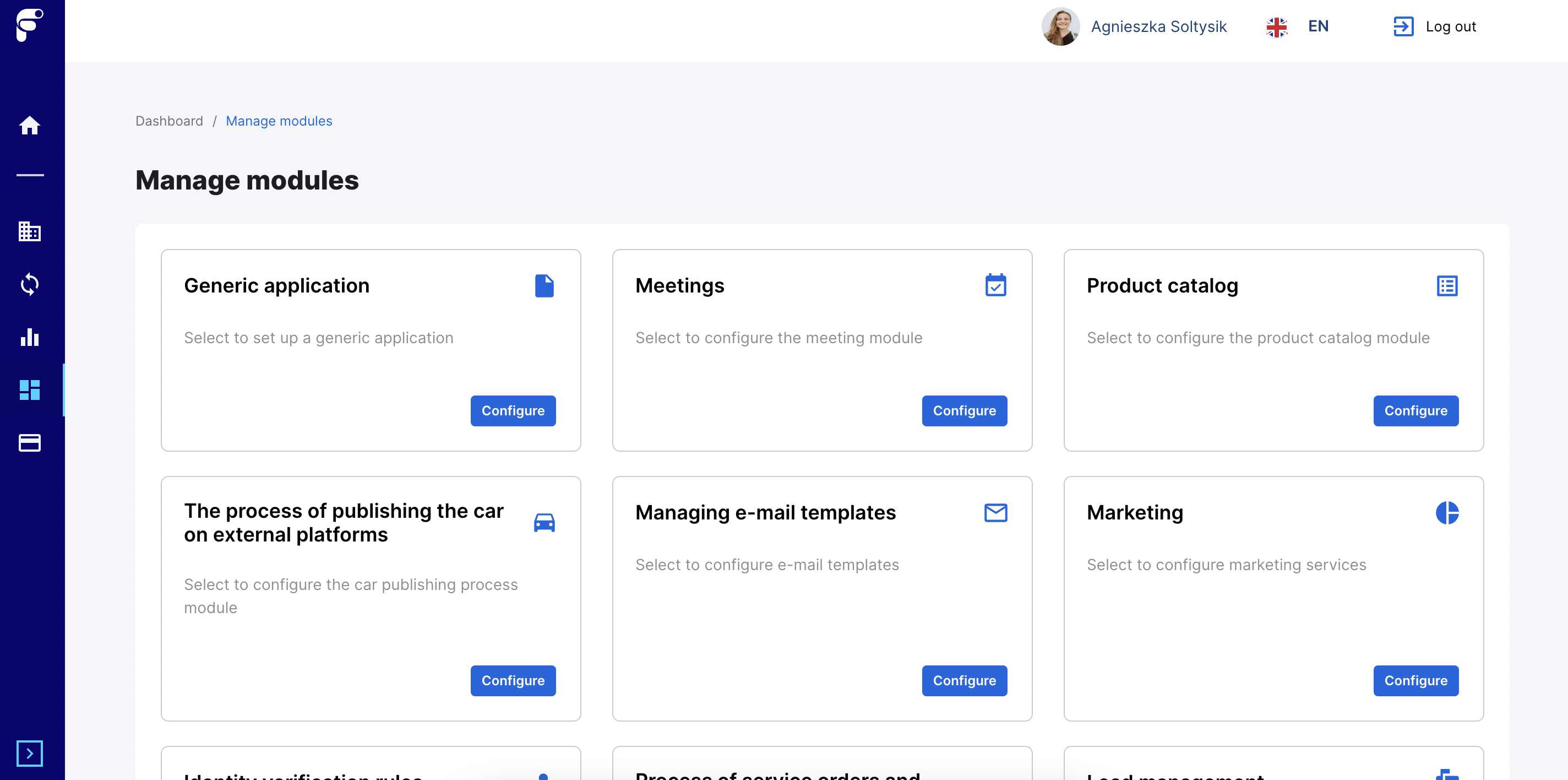
After clicking the tile, you can create a new email template or scroll through the list of all existing templates. In this case, we want to create a new email template, so we need to click the blue "Create Email Template" button at the top of the page.
2. Create new email template
This is the view for creating a new email template
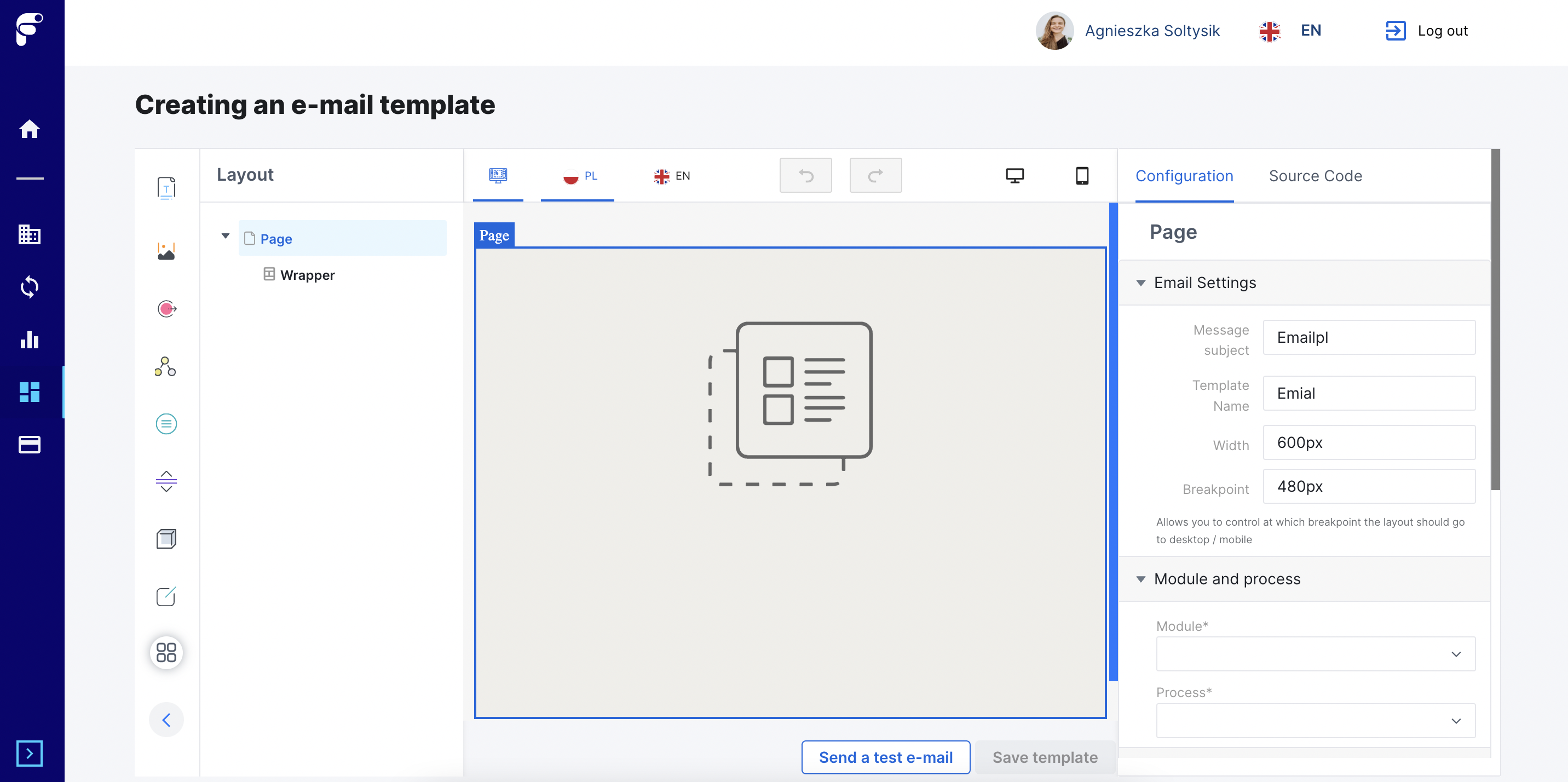
On the left side, there are many tools to use. You can drag and drop one of the tools to the empty space in the middle. The second column shows elements that are used in the template layout.
At the top of the page, you can change the language version to Polish or English and change the page view: mobile or web. On the right side, you need to fill in several fields. Required fields are: Message subject, Template name, Module, and Process.
If the email template is ready, you can click the button: Send test email or Save template.
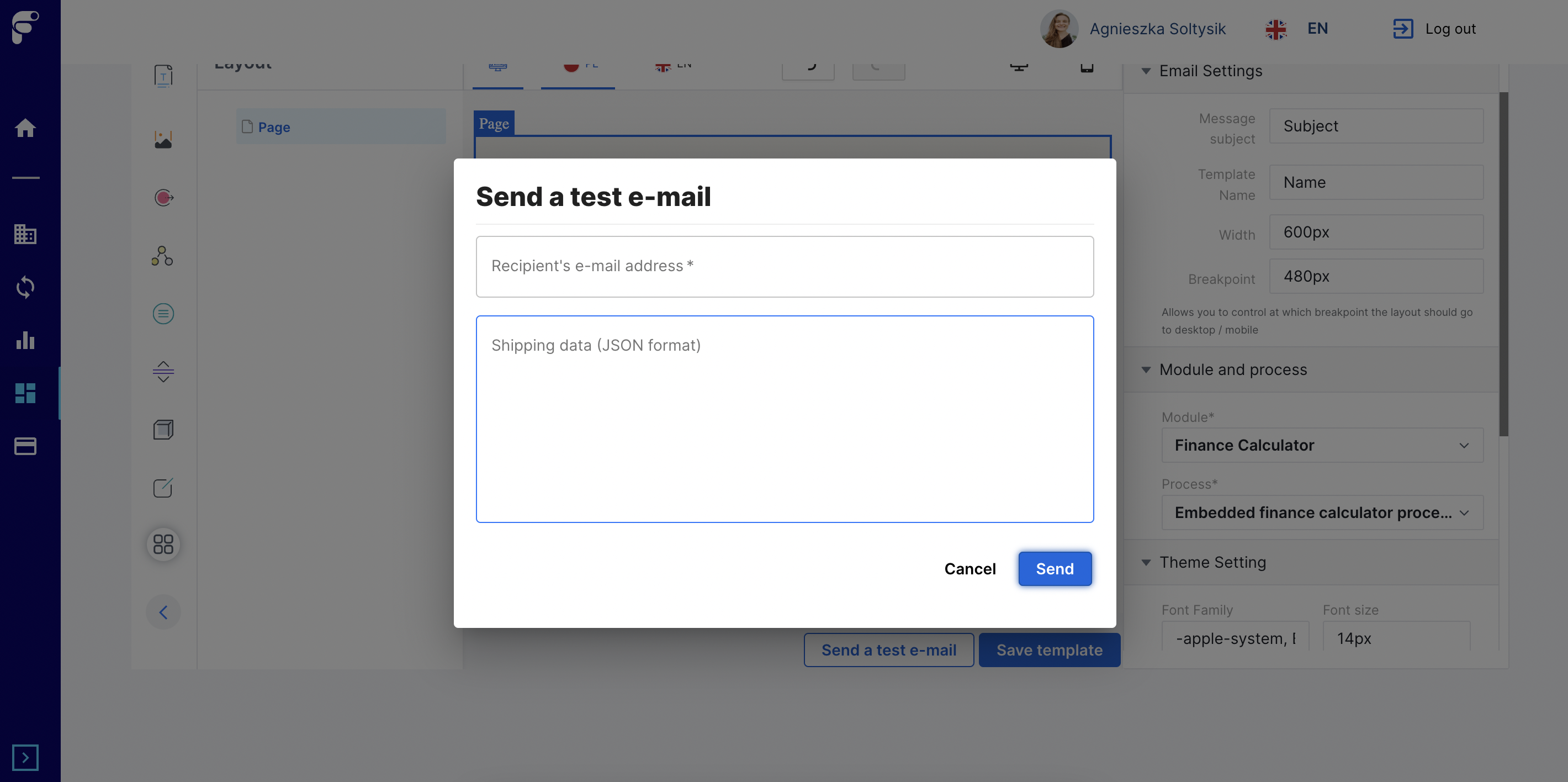
3. Send test email
If you want to send a test email, you need to fill in one field: recipient's email address. This is a required field. Sender data is a required field. This field should be in JSON format.
4. Save template
If you want to save the template, you need to click the Save button. You can also cancel saving and continue editing the email template.
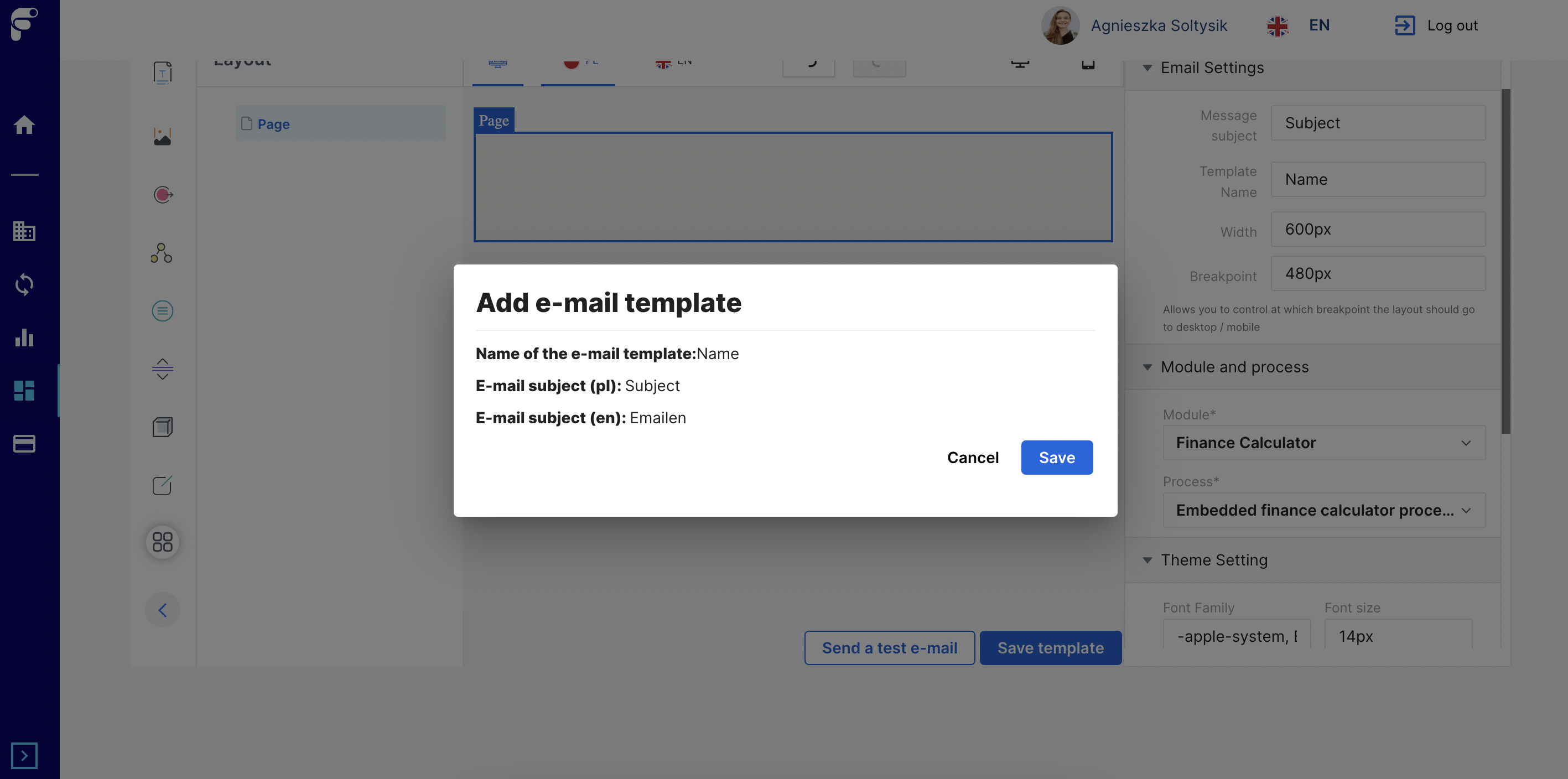
After saving the new template, you can find it on the previous page, in the templates list. The saved template can then be used in processes and email notifications.