SMS Template
How to create a new SMS template?
1. Go to modules management page
Click the fifth icon in the sidebar, then you will see tiles on the page. Click the one titled "SMS Template Management".
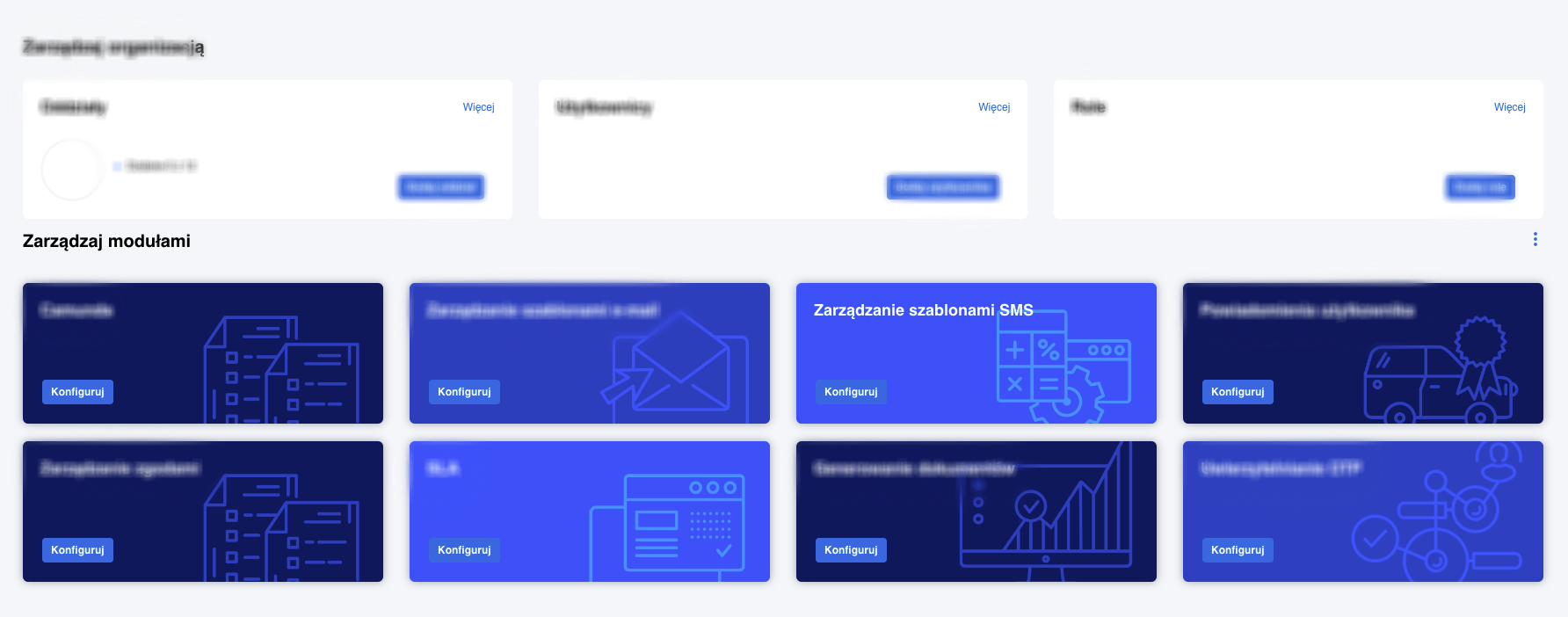
After clicking the tile, you can create a new SMS template or scroll through the list of all existing templates. The "SMS Template Management" module contains all defined templates with default pagination of 10 items.
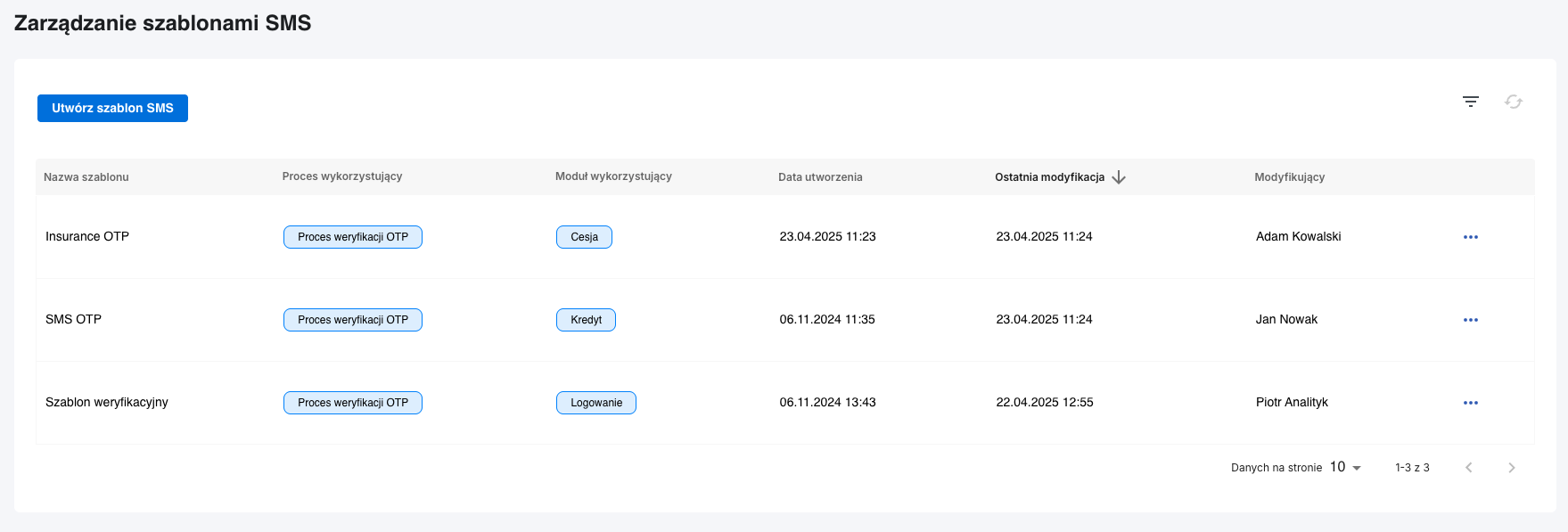
The list contains sortable columns:
- Template name
- Process using
- Module using
- Creation date
- Last modification
- Modified by
- Options (delete, edit)
In this case, we want to create a new SMS template, so we need to click the blue "Create SMS Template" button at the top of the page.
2. Create new SMS template
This is the view for creating a new SMS template
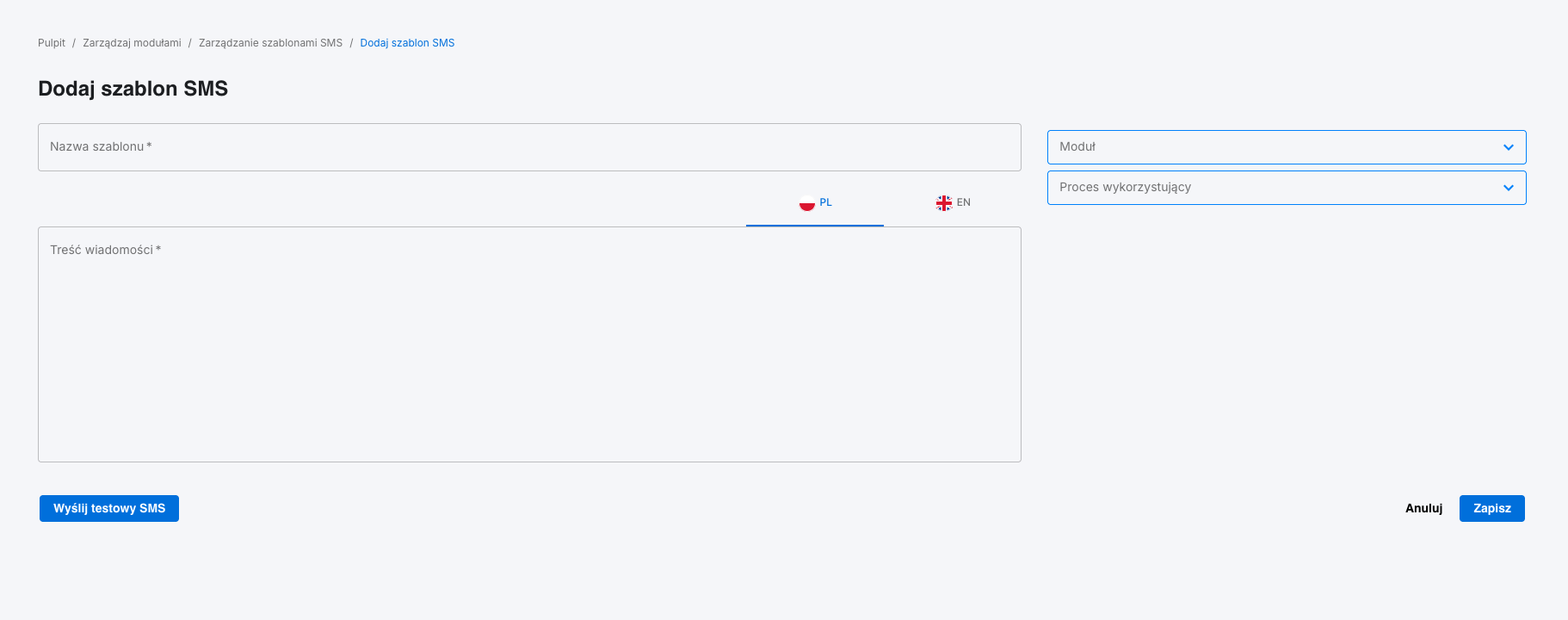
On the right side, you need to fill in several fields. Required fields are:
- Template name (required)
- Message content (required)
- Module using - dropdown list with modules connected for the given Fintin instance
- Process using - dropdown list for the selected module and process definition above
3. Fill message content
The SMS template must have content for two languages:
- Content for Polish language (PL)
- Content for English language (EN)
After selecting the module and process, Fintin suggests process variables that can be placed in the template, for example: {{caseNumber}}, which corresponds to the case number in the given process.
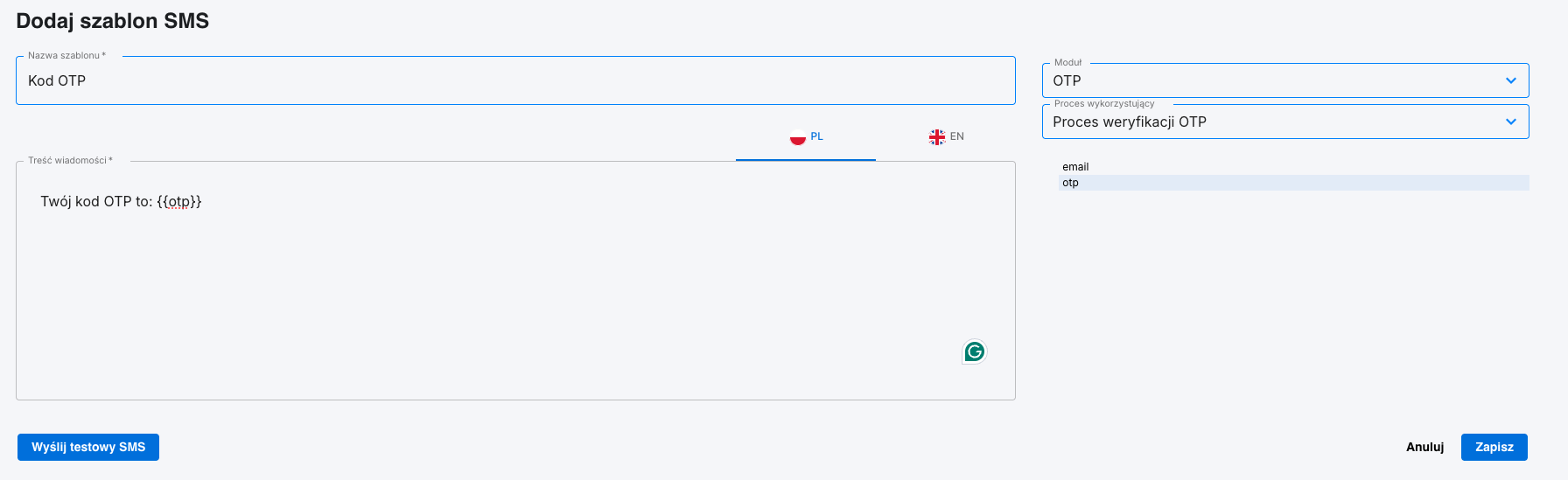
4. Save template
If you want to save the template, you must click the Save button.
After saving the new template, you can find it on the previous page, in the templates list. The saved template can then be used in processes and SMS notifications.