Absence and Substitution Calendar
The Task Manager module offers a built-in absence and substitution calendar feature. This module allows managing the absence plans and necessary substitutions at the user group level within the tool. Proper configuration of the module enables more efficient task handling and automation of task assignments within the team.
Key Features
- Managing absences at the user group level
- Registering absences with the option to assign a substitute
- Automatic reassignment of tasks to the substitute person
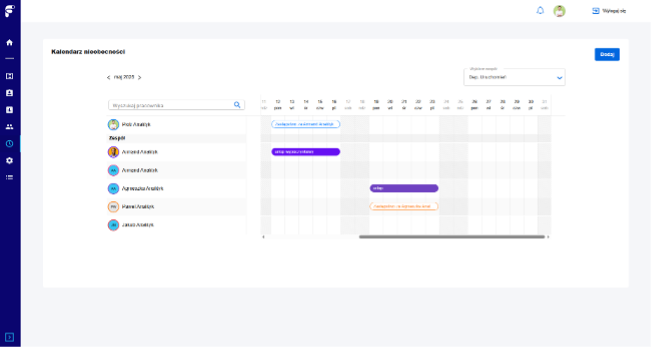
- Calendar view of team absences
- Searching for employee absence information
- Editing existing absences
Permissions and Data Visibility
Data is displayed according to the permissions granted in the organization management module in the system’s admin panel for selected roles. Roles are assigned to users through:
- The management module in the system
- Information retrieved from the organization's Active Directory systems
Accessing the Module
To access the absence and substitution module:
- Log in to the Task Manager tool
- Go to the tab marked with the clock icon
Adding New Absences
Absences can be added in two ways:
Method 1: "Add" Button
- Select the "Add" function in the Task Manager view
Method 2: Drag Date Range
- Drag the mouse over the date range on the displayed calendar
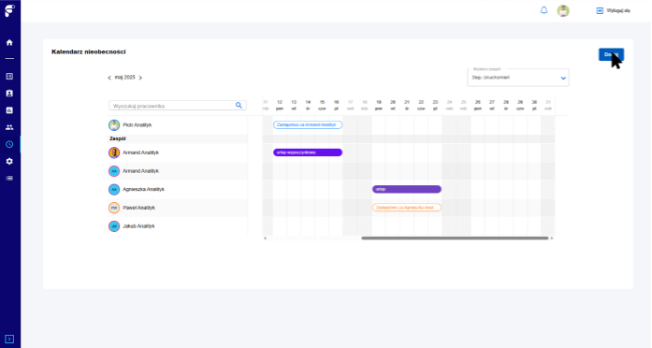
After selecting one of the options, a modal appears allowing you to enter absence parameters:
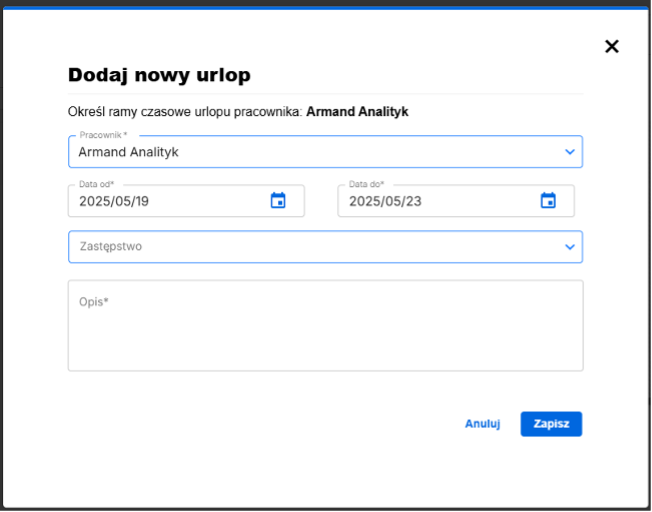
Absence Parameters
- Employee – displayed according to the employee for whom the absence was chosen from the calendar. If lacking permissions to manage the entire team’s leave, it is only possible to enter your own absence
- From and to dates – if the leave range was selected by dragging, the range remains selected
- Substitution – indicating the person to take over tasks during the absence period
- Reassign tasks from the leave start – option available only for future leaves, reassigns all assigned tasks to the substitute, including tasks currently being supplemented by the client after returning from the client to the back-office team
- Description – field accepting any value displayed as the type of leave on the team calendar
Important Notes About Teams
All entered absences relate to one team. If an employee plays a role in several teams/groups, absences must be entered separately for each group. The group selection is in the upper right corner of the interface.
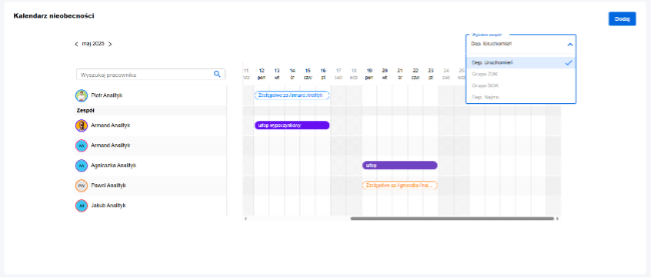

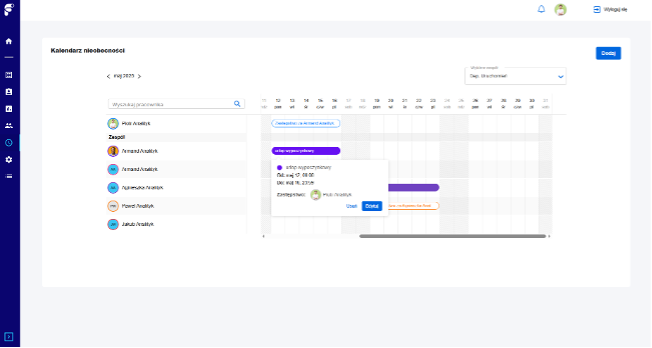
Editing Absences
- Hover over a given leave in the calendar
- A brief absence info and option to edit appear
- Upon entering edit mode, actions similar to adding new absences are available
Employee Search
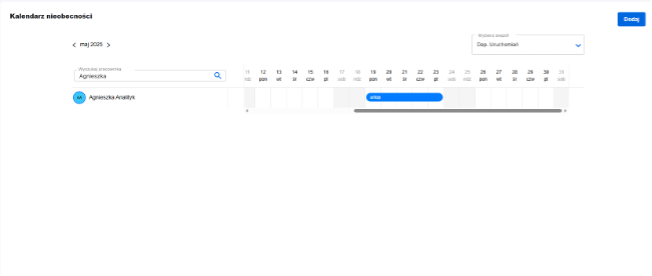
The module allows searching for employee absence information within a given team:
- Use the search field in the left corner of the calendar
- Enter employee details
- Confirm to search
Automatic Task Reassignment to Substitutes
The system automatically considers registered absences when assigning tasks. If an automatic task assignment algorithm is applied in the organization, the system prevents assigning a task to an absent person. If attempting to assign a task to an employee during their absence, the system automatically:
- Blocks the possibility of assigning the task to the absent person
- Takes substitution information into account when redirecting tasks
- Ensures business process continuity through intelligent task routing
Thanks to this feature, tasks are not left unattended due to employee absences, and business processes run without interruptions.