Dashboard - Overview
The Task Manager Dashboard serves as a control center for system users, providing quick access to the most important functionalities and an overview of the current status of tasks and cases.
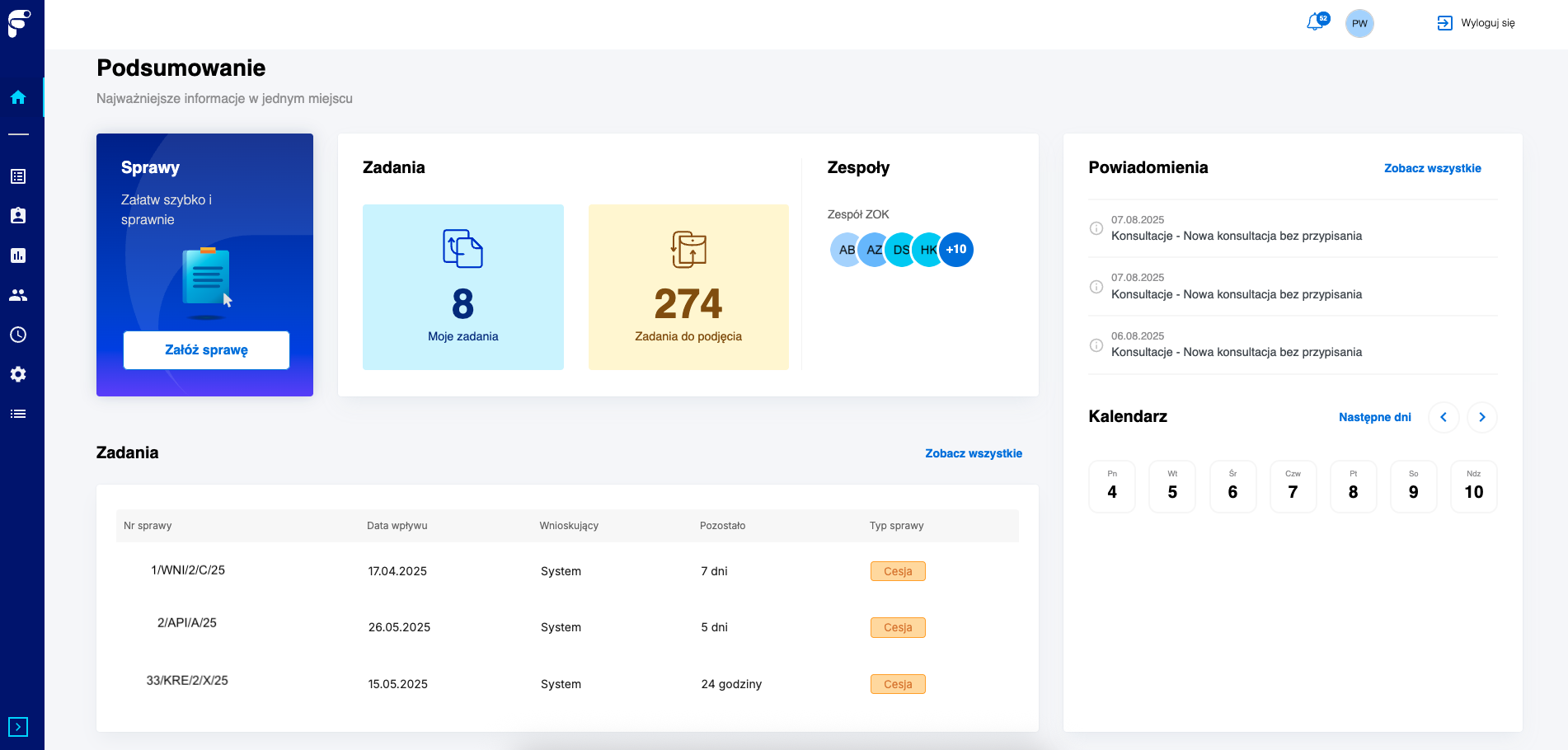
Main Task Manager dashboard view with all information sections
Dashboard Sections
Cases
The section contains the "Create Case" button, which allows you to quickly and efficiently create a new case. After clicking, the user is redirected to the case type selection screen, where they can choose from processes they have permissions for.
Tasks
Two boxes providing information about:
- Number of assigned tasks to the currently logged-in user
- Tasks to be taken - number of cases that are not assigned to any user and await action
Teams
The section provides information about:
- Teams the user is assigned to (according to system configuration)
- Team member avatars and their total number
- Quick overview of team composition
Tasks (case list)
Contains:
- List of recently handled cases with quick access capability
- "View all" button enabling navigation to the full view of all cases and tasks
Calendar
Displays the current week with scheduled events and deadlines.
Notifications
Section with latest notifications and "View all" button. Detailed functionality description available in the Task Manager Notifications article.
Dashboard Benefits
- Central place for managing all aspects of work in the system
- Quick access to the most important functions without needing to navigate through menus
- Status overview of tasks, cases, and notifications in one place
- Effective time management thanks to calendar view and priorities
- Easy case creation directly from the main screen
- Team monitoring and collaboration with other users