Attachments
The case attachment functionality enables adding, managing, and displaying files within individual cases. Attachments serve to collect case documentation, client communication, and archive important documents related to case handling.
Attachments Section
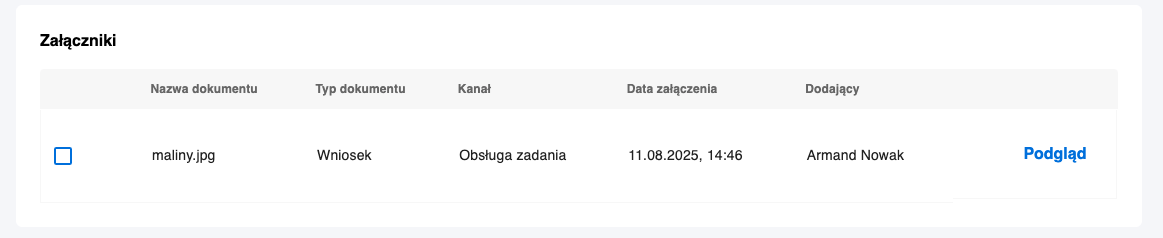
Each case has an Attachments section that contains:
- Selection column - checkbox allowing selection of attachment(s) for download
- Document name - full filename of the attachment
- Document type - document category consistent with the case process
- Channel - source of the document
- Attachment date - timestamp of file addition to the system
- Adding user - information about the attachment author
- Preview option - ability to view the document without downloading
Attachment Management Functions
Selecting Attachments
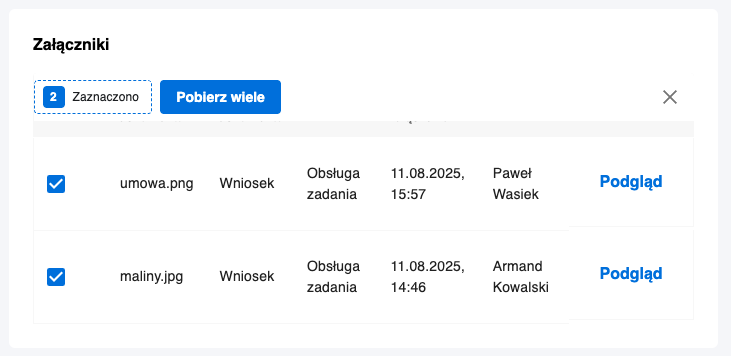
The "Select" column allows for:
- Single selection - choosing a specific attachment for download
- Multiple selection - choosing a group of attachments for download as a package
Document Preview
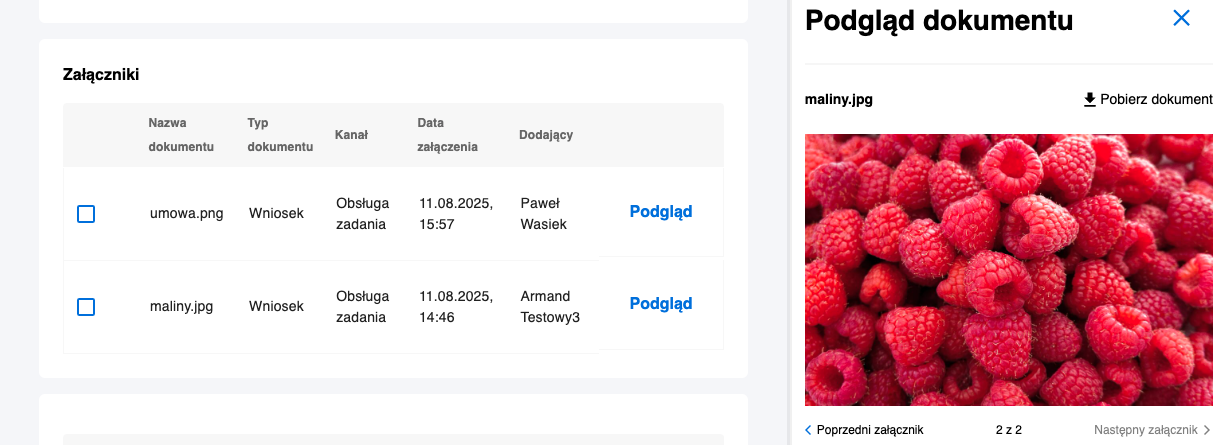
Each attachment can be previewed directly in the system without the need to download to local disk, which speeds up work with documentation.
Adding New Attachments
To add new attachments to a case:
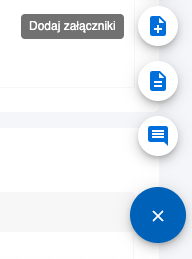
- Click the add button - use the floating button available in the attachments section
- Select files - you can add attachments in two ways:
- Drag and drop - drag files directly to the modal area
- Select from menu - use the standard operating system file selector
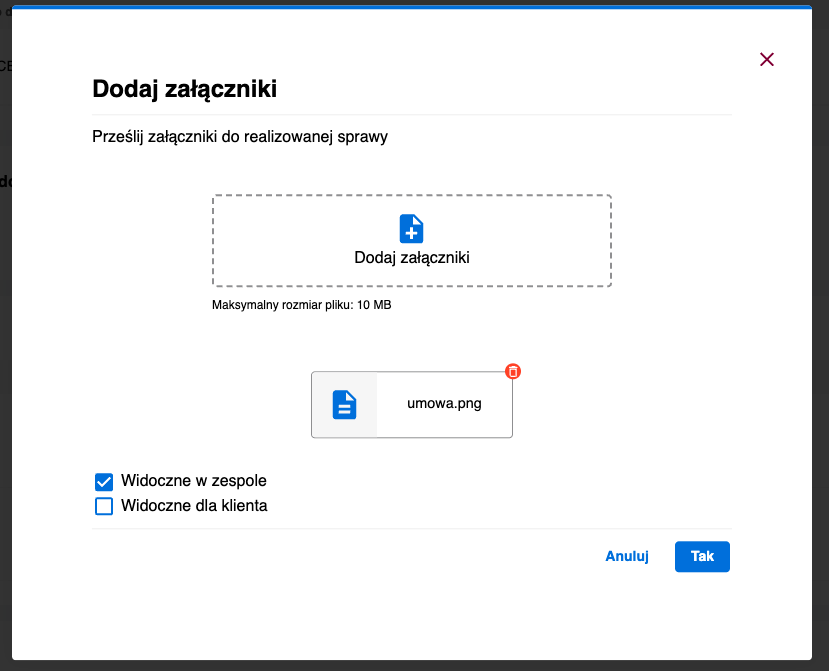
- Configure settings - for each attachment you can specify:
- Visibility for client - flag determining whether the attachment will be available to the client
- Document type - categorization consistent with the case process
Each attachment added by a user in Task Manager is automatically visible to the entire team that currently handles the case (depending on process configuration).
Attachment visibility for clients is controlled by:
- "Visible to client" flag set during addition
- Process settings - additional restrictions at the system configuration level
- User permissions - ability to mark attachments as public
- Confirm addition - save attachments in the system
Limitations and Requirements
File Size
- Maximum file size: 10 MB
- System automatically checks size before upload
Multiple Addition
- Ability to add multiple files simultaneously within one modal
Attachment Visibility
After addition, attachments are visible in the Attachments section according to permission rules