Comments
The comments functionality enables adding, editing, and managing notes within individual cases. Comments serve for communication between team members and documenting important information related to case handling.
Comments Section
Each case has a Comments section that contains:
- Action column - buttons for editing and deleting comments
- Date added - timestamp of comment creation
- User - information about the comment author
- Comment content - full content of the note
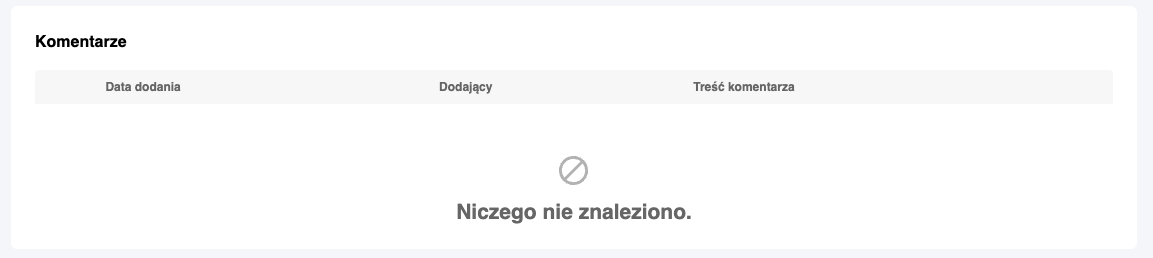
Adding a New Comment
To add a new comment to a case:
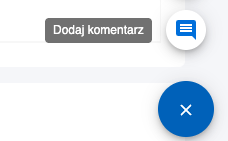
- Click the add button - use the floating button available in the browser corner
- Enter content - type the comment content in the text field
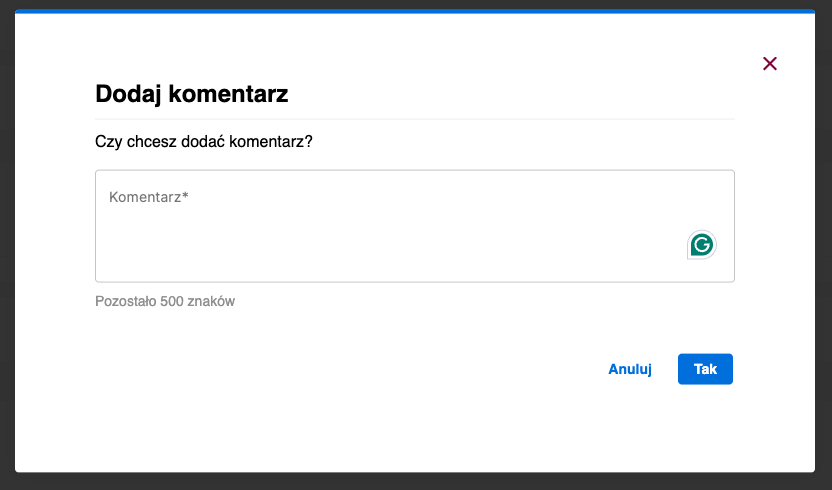
- Save comment - confirm adding the comment
After adding, the comment will be displayed in the comments section.
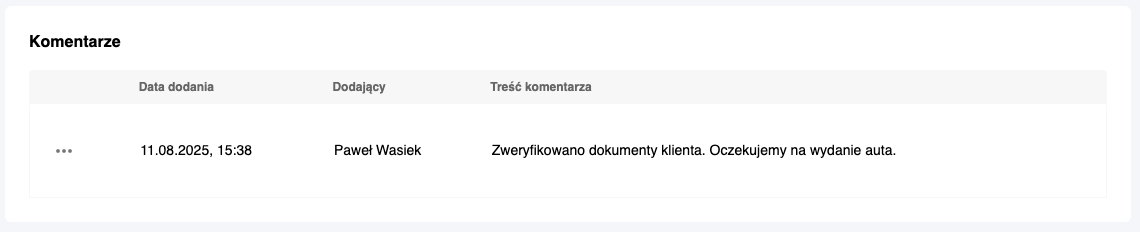
Displaying Comments
Comments in the section are sorted chronologically - from oldest to newest. This allows easy tracking of communication history regarding the case.
Each comment contains:
- Date and time of creation
- Author's first and last name
- Full comment content
- Action buttons (if the user has appropriate permissions)
Editing and Deleting Comments
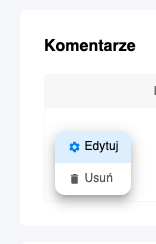
Each comment added by the currently logged-in user can be modified:
- Edit - allows changing the comment content
- Delete - enables removing the comment from the system
Permissions
The action menu with edit and delete options is available only for comments created by the currently logged-in user.
Limitations
- Maximum comment length: 500 characters
- Comments can be edited and deleted only by their authors
- Comment change history is not stored after editing