SLA
SLA (Service Level Agreement) defines the maximum allowed times for processes and tasks execution within the Task Manager in Fintin.
SLA settings allow you to:
- Define maximum execution times for processes
- Set time limits for individual tasks
- Automatically notify about breaches
- Monitor team performance
- Generate SLA reports
Accessing SLA Settings
How to access:
- Log in to Task Manager
- Navigate to "Domain Settings"
- In the "SLA" section, select "Configure"
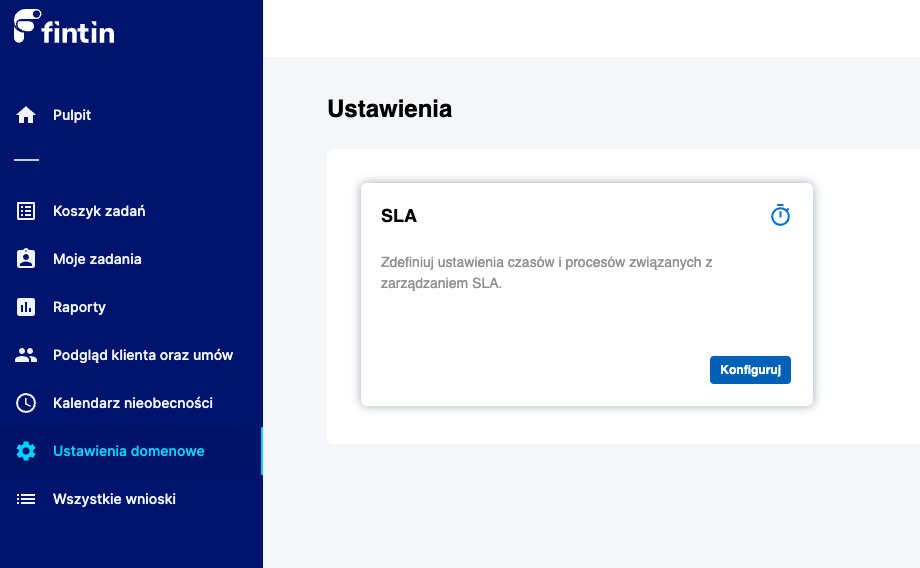
Required permissions:
- Administrator role or
- Special permissions to manage SLA
Basic Concepts
Process SLA
Definition: The maximum time from start to completion of the entire business process.
Example: The "Generic Application" process should be completed within 3 working days.
Task SLA
Definition: The maximum time to complete a specific task within the process.
Example: The "Analyst Verification" task should be completed within 4 hours.
Time Format
All times are defined in the format: dd:hh:mm
dd- days (00-99)hh- hours (00-23)mm- minutes (00-59)
Step-by-step SLA Configuration
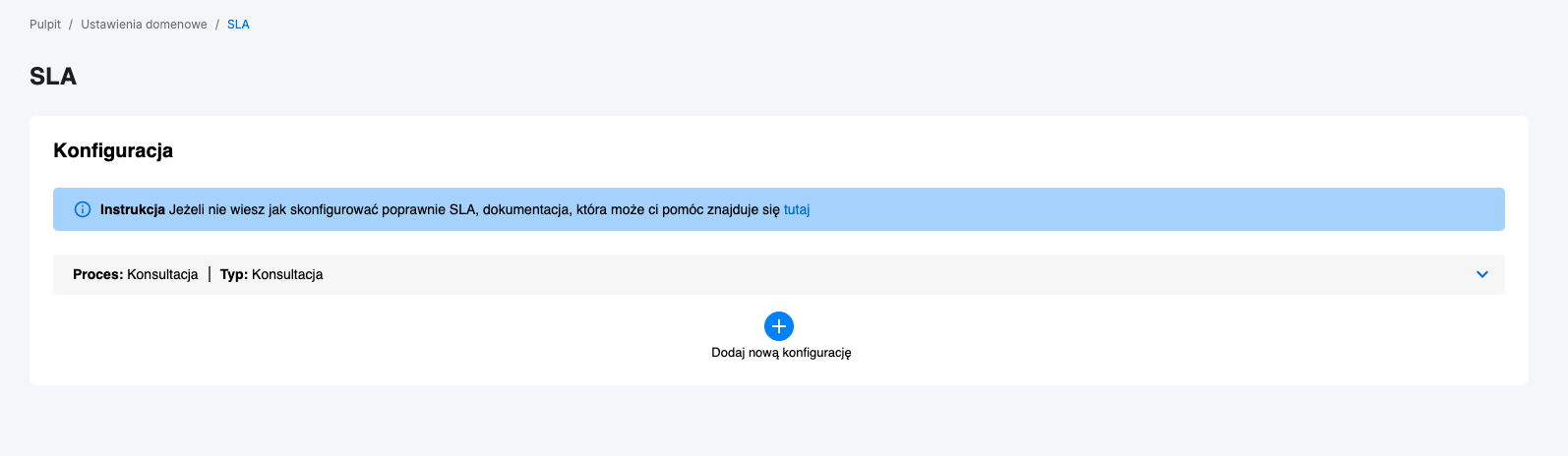
Adding a new configuration
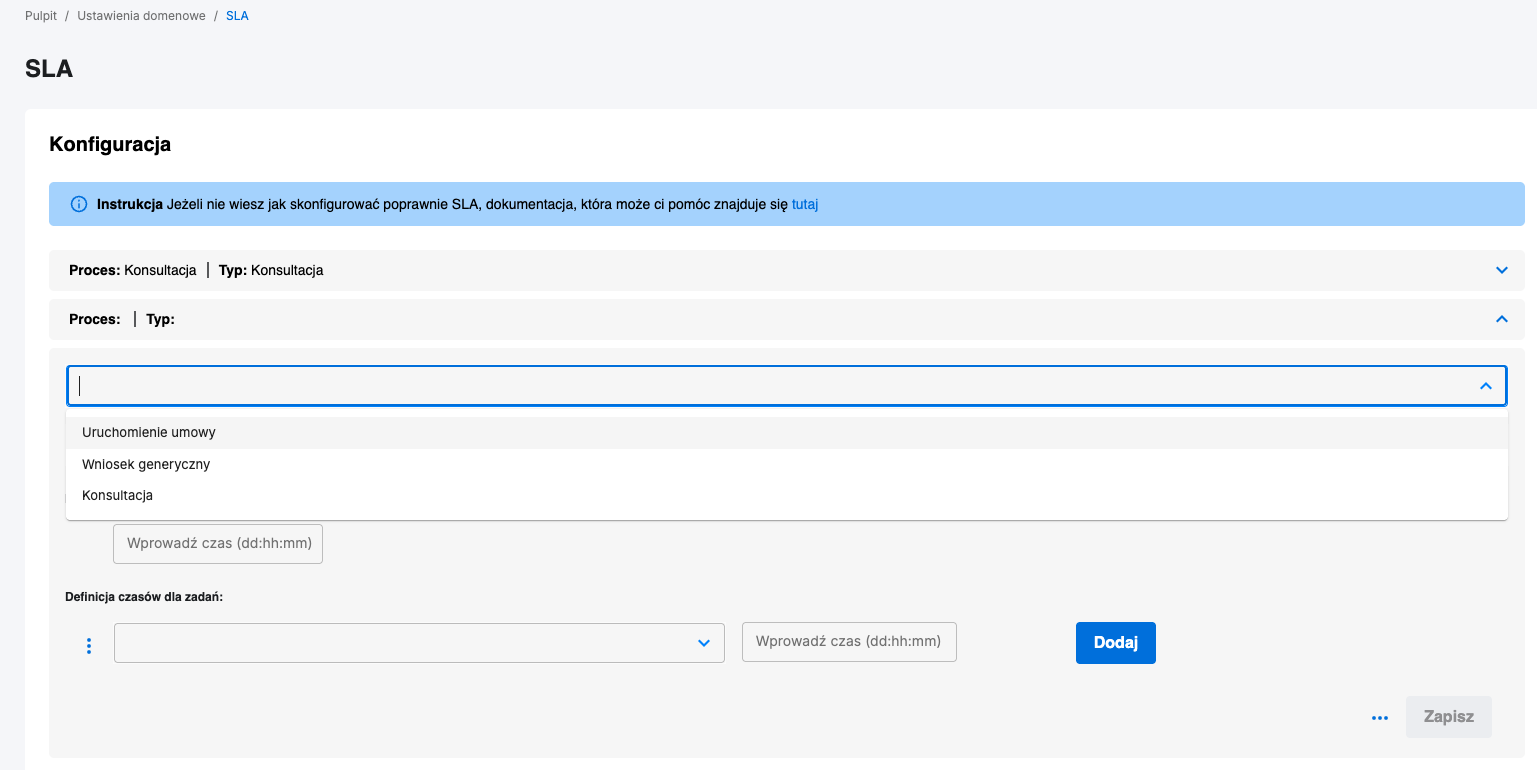
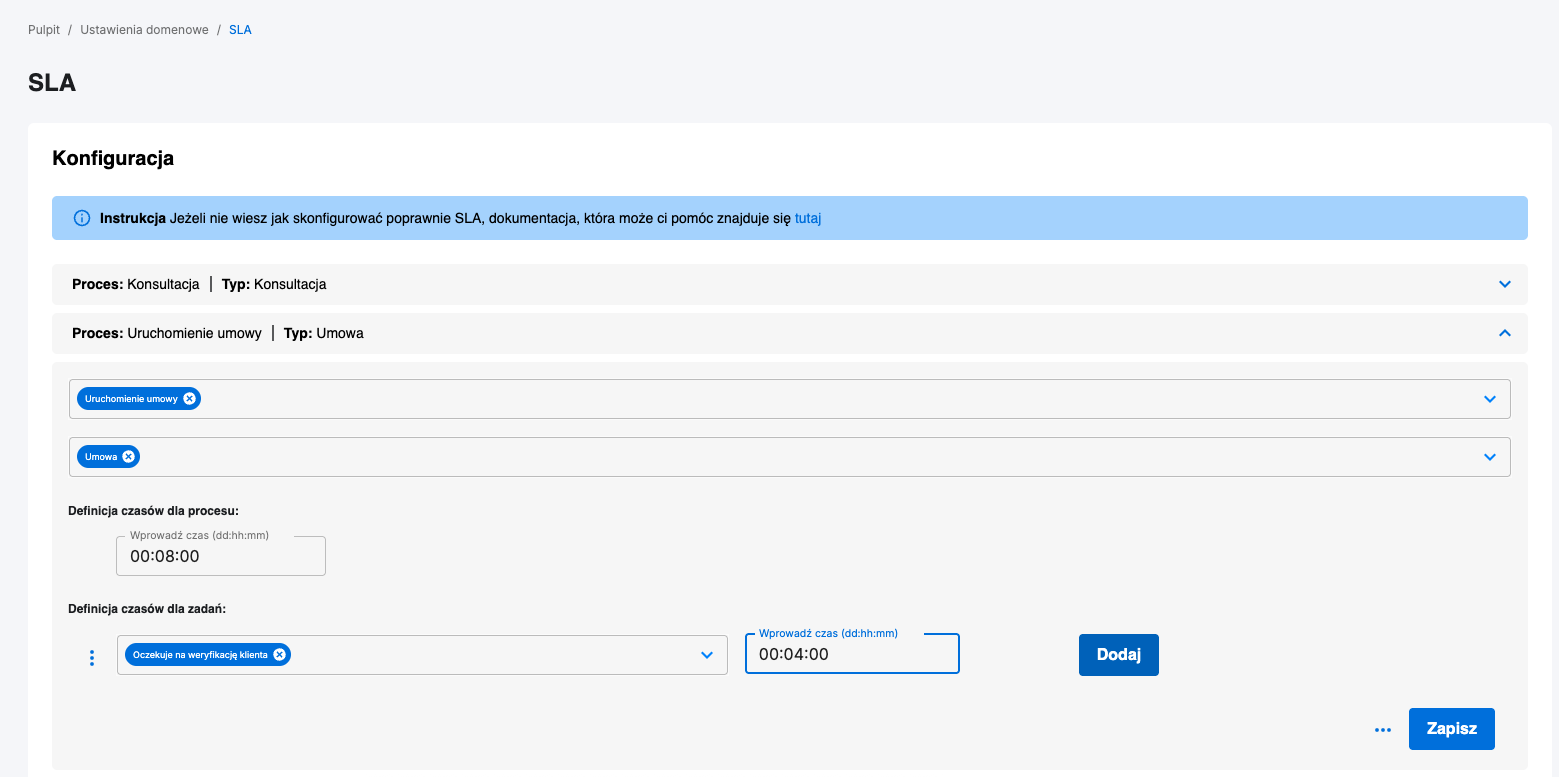
- Click the "Add New Configuration" button
- Select the process type from the dropdown list
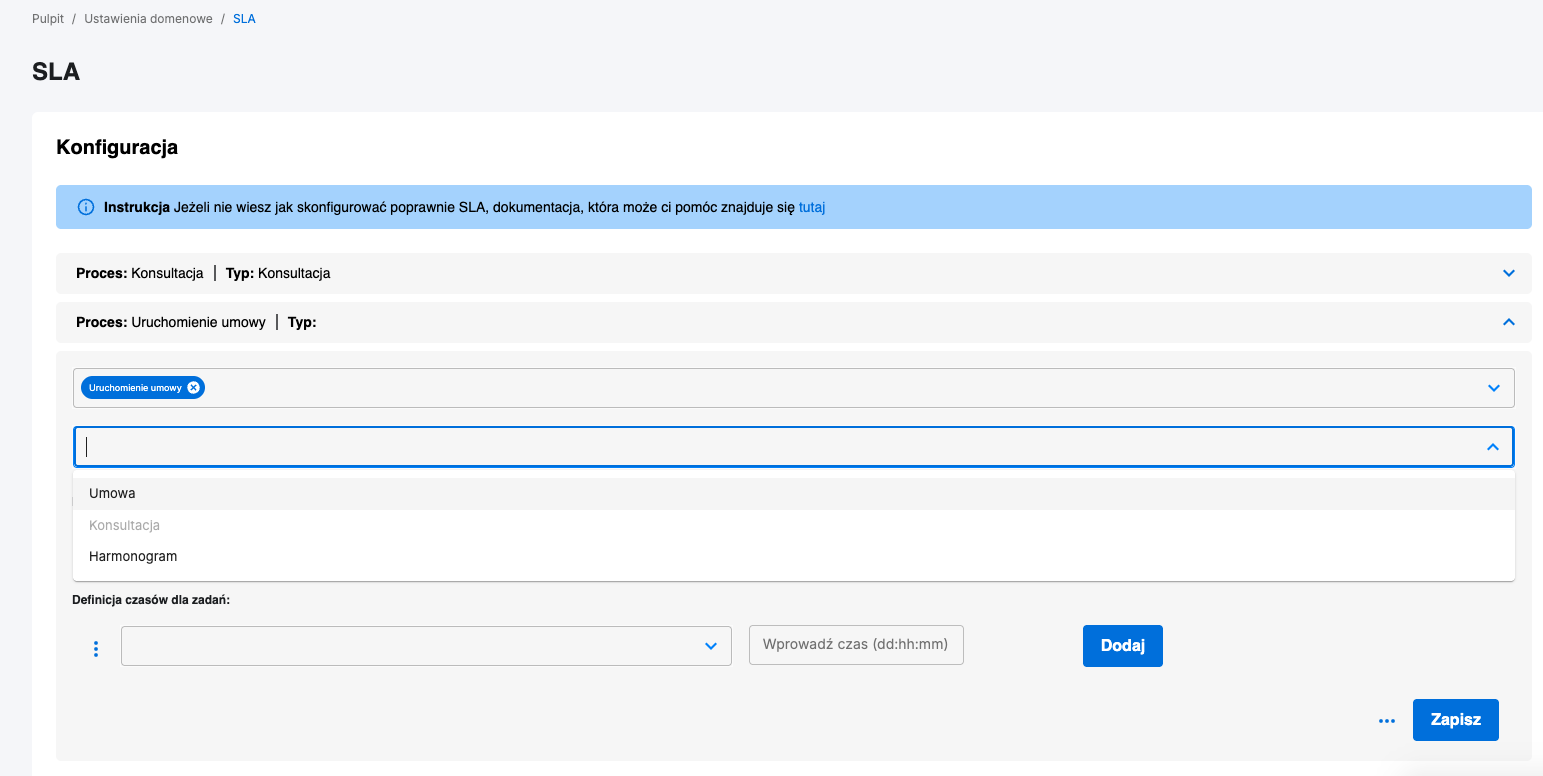
- Check the relevant case and task types
Setting Process SLA
- In the "Task Time Definitions" section
- Enter time in
dd:hh:mmformat - This time defines the maximum duration of the entire process
Task SLA Configuration
- In the "Task Time Definitions" section
- Click "Add Task Time"
- Select task types from the multi-select list
- Enter the maximum execution time for selected task types
- Repeat for different task type combinations
Saving the Configuration
- Verify the correctness of entered data
- Click "Save"
- Wait for the confirmation of saving
Best Practices
Setting Realistic Times
- ✅ Base on historical performance data
- ✅ Consider complexity of various case types
- ✅ Allow buffer for unforeseen situations
- ❌ Avoid unrealistically short times
Differentiating SLA by Case Type
- ✅ Urgent cases = shorter SLA
- ✅ Complex analyses = longer SLA
- ✅ Routine operations = short SLA
- ❌ Avoid using the same SLA for all case types
Monitoring and Adjustment
- ✅ Regularly review SLA reports
- ✅ Adjust times based on actual results
- ✅ Analyze reasons for breaches
- ✅ Consult changes with the team
Communication with the Team
- ✅ Inform the team about new SLAs
- ✅ Explain the business logic behind timings
- ✅ Provide training if necessary
- ✅ Collect user feedback
Troubleshooting
SLA Not Working Correctly
Problem: SLA does not function properly despite saved configuration
Possible causes and solutions:
Incorrect time configuration
- System accepts various time value formats
- Validate entered values against business logic
- Ensure times are realistic and aligned with processes
Incorrect mapping of case and task types
- Check if selected types correspond to actual processes
- Ensure configuration covers all required combinations
Conflicts between multiple configurations
- Check for overlapping settings
- Remove duplicate or conflicting configurations
Configuration Saving Errors
Problem: Error during configuration definition
Possible causes and solutions:
Invalid time format
- Verify format
dd:hh:mm - Ensure values are within allowed ranges
- Verify format
Conflict with existing configuration
- Check for duplicate configurations
- Remove old configuration before adding a new one
Lack of required permissions
- Contact system administrator
- Verify assigned user roles
Configuration Examples
Example 1: Standard Credit Application
Application type: Generic Application
Case type: Consumer Credit
Process SLA: 03:00:00 (3 days)
Task SLAs:
- New:
00:02:00(2 hours) - Waiting for analyst verification:
01:00:00(1 day) - Waiting for client verification:
02:00:00(2 days)
Example 2: Quick Consultation
Application type: Consultation
Case type: Product Information
Process SLA: 00:08:00 (8 hours)
Task SLAs:
- New:
00:01:00(1 hour) - Waiting for analyst verification:
00:04:00(4 hours)
Example 3: Contract Activation
Application type: Contract Activation
Case type: Credit Card Activation
Process SLA: 00:04:00 (4 hours)
Task SLAs:
- New:
00:00:30(30 minutes) - Waiting for analyst verification:
00:02:00(2 hours)