Task Manager Notifications
The notification mechanism in Task Manager enables users to receive instant information about important events occurring in processes and other system events. All notifications are displayed regarding:
- Processes - information about task statuses, new assignments, deadlines
- Absences - notifications about scheduled vacations, team substitutions
- Consultations - new messages, inquiries within consultations
- Visits - information about scheduled meetings, time changes (if available in the system).
Access to Notifications
Access to notifications can be obtained in two ways:
1. Bell Icon in Header
Clicking the bell icon in the upper part of the Task Manager interface displays a list of the latest notifications in a dropdown menu format.
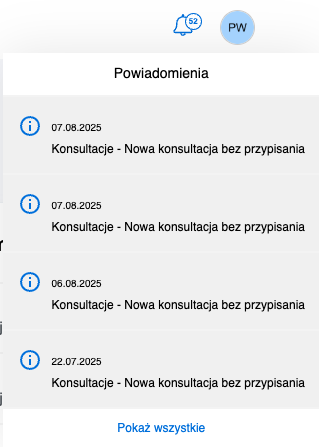
Dropdown notification menu available after clicking the bell icon in the Task Manager header
2. Notifications Section in Dashboard
From the main dashboard, you can navigate to the full list of notifications by selecting "View all" in the Notifications section (box).
Notification Handling
Marking as Read
Clicking (expanding) a notification automatically causes:
- Marking the notification as read
- Expanding the full notification content with additional details
Full Notifications List
On the "Notifications" page, users can:
- Browse all notifications in chronological order
- Filter notifications by type (processes, absences, consultations, visits)
- Mark selected notifications as read or unread
- Delete unnecessary notifications
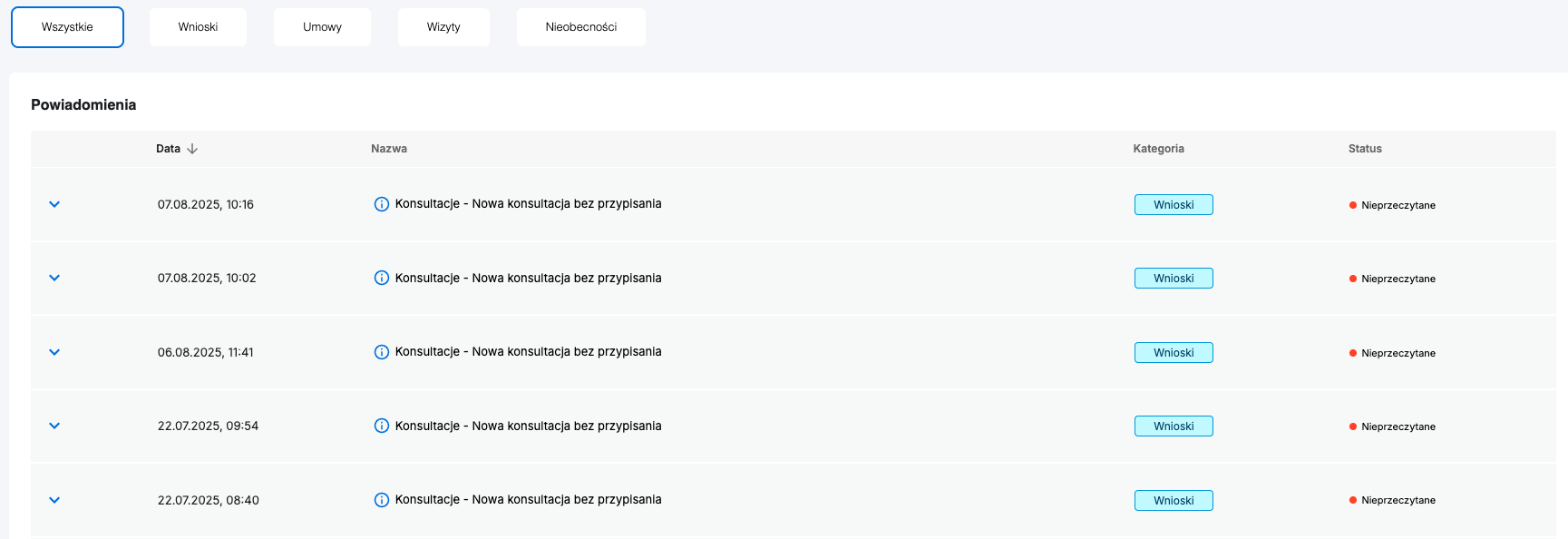
Dedicated page with full list of all system notifications
Benefits of the Notification System
- Quick information about important system events
- Central location for browsing all notifications
- Automatic marking of read messages
- Easy access from anywhere in the system through the bell icon
- Comprehensive view of all notification types in one place