Basket Filtering
The basket ## Indicators and Statistics
Result Counters
- Current number of tasks meeting the criteria
- Comparison with total number of tasks in the basket
- Percentage of tasks in given category
- Trends - changes over time for given filter
Visualizations
- Bar charts showing distribution by category
- Pie charts for proportions of different task types
- Timeline showing task distribution over time
- Heat map of activity by days/weeks
Filtering Benefits
- Precise search for specific tasks
- Improved productivity through task organization
- Quick overview of the status of different work categories
- View personalization according to individual needsbles precise narrowing of the task list according to various criteria, allowing users to effectively find and organize work within the selected task basket.
Filter Access
After clicking the filter icon, a modal opens where you can filter tasks/cases according to parameters available for the given process.
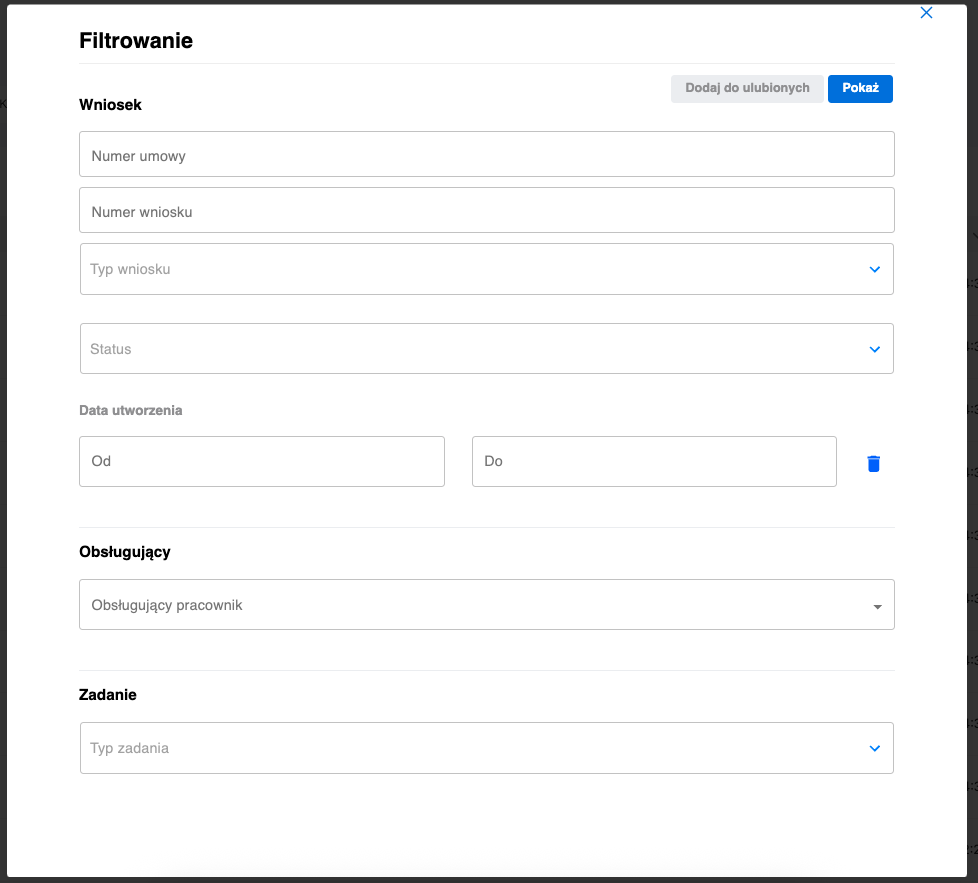
Filtering modal with available filter categories (Application, Handler, Task)
Filter Categories
Application
- Contract number — search by specific contract number
- Application number — application identifier in the system
- Application type — category/type of submitted application
- Status — current application processing status
- Creation date from/to — time range for application creation
Handler
- Employee list in the given group/team with the ability to select specific persons responsible for tasks
Task
- Task type in the system — task classification according to their nature and purpose
Additional Filters
Depending on configuration and existing processes in Fintin, other filters specific to particular business processes may be visible.
Filter Management
Adding to Favorites
- After configuring the filter, click "Add to Favorites"
- Enter the filter name in the displayed window
- Click "Save"
- The filter will be added in the header on the Task Baskets view for quick access
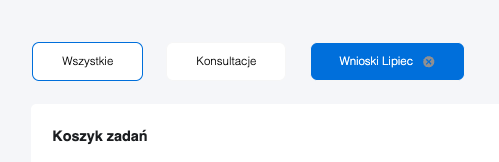
Task basket view with active filter visible in the page header
Removing Filters
Each filter can be removed by clicking "X" next to the filter name, which will:
- Remove the filter from the active list
- Restore the full task list
- Preserve other active filters (if applied)
Filtering Benefits
- Quick search for specific tasks according to defined criteria
- Work personalization through saving frequently used filter combinations
- Efficiency thanks to quick access to favorite filters from the header
- Flexibility in adapting the view to current business needs
- Context sensitivity — filters adapted to the specifics of processes in Fintin